
Save Power While Parked on your Dashcam with a Geofence | Vueroid & Viofo
Parking monitoring is great for capturing hit-and-runs and vandalism, but constant recording can drain your car battery—especially when you park in familiar, secure places like your workplace or home garage. Geofence parking control solves that by automatically disabling parking recording in specific locations you choose. No more manually toggling parking mode or worrying about a dead battery the next morning.
What is geofence parking control?
Geofencing uses GPS to create virtual zones around locations where you want the dashcam to behave differently when the vehicle is parked. When your car enters a registered zone, the dashcam can be set to shut off parking recording completely instead of entering battery-consuming parking mode. Leave the zone and parking monitoring resumes automatically.
Why use geofence for parking mode?
- Save battery: Prevent unnecessary parking recordings when parked somewhere safe.
- Convenience: No need to manually toggle parking mode on and off.
- Custom control: Set multiple zones (home, work, long-term parking) with different radius.
- Cleaner footage: Avoid filing hours of irrelevant footage from a private garage or secure lot.
Supported models
Geofence parking control is available on recent Vueroid / Vofo and Void models. Confirm your firmware is up to date before configuring.
- Viofo: A329T, A329S, A329 (original), A229 Pro, A229 Plus
- Vueroid: S14K, D21 4K, D20 Q2
How to set up geofence parking control
Two setup paths are available depending on your dashcam: the smartphone app or the dashcam/hub app screen. The basic idea is the same—register a location and choose a radius where parking recording will be disabled.
Step 1 — Ensure a GPS lock
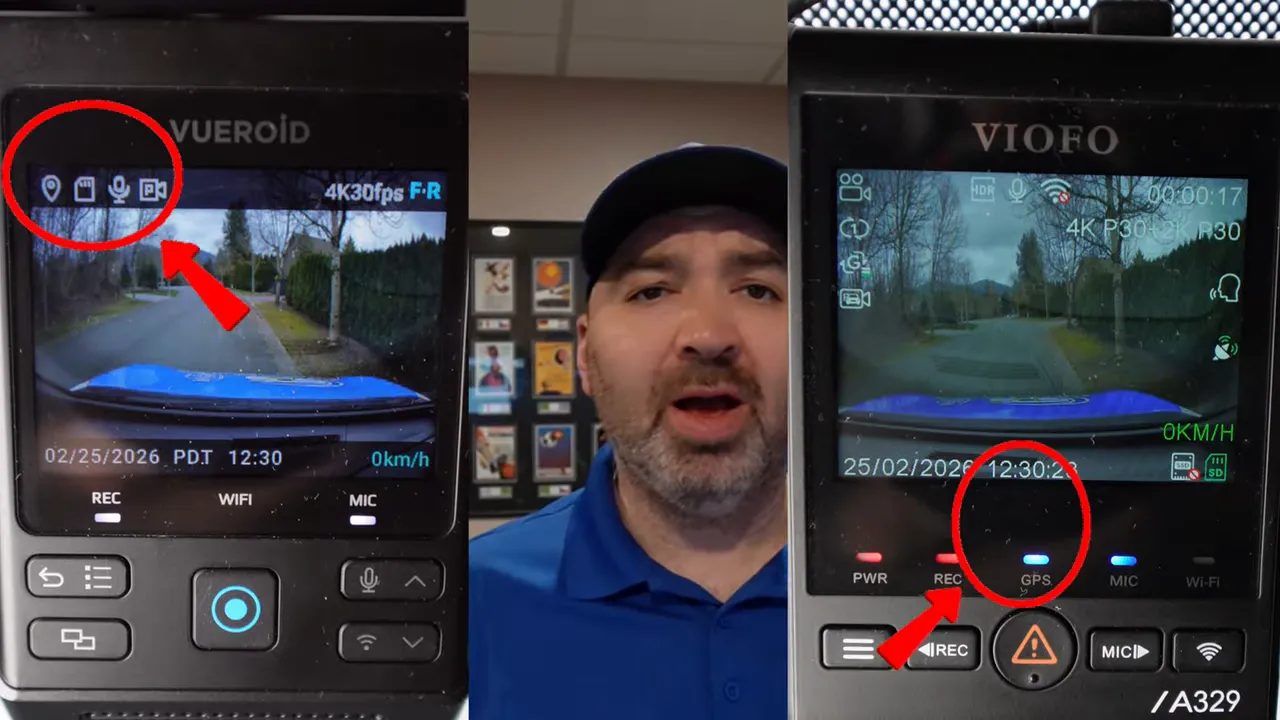
Geofencing depends on a reliable GPS connection. Look for a solid GPS indicator on your device (for example, a steady blue GPS light). If the GPS icon has a red line through it or the GPS light is blinking, the geofence won’t work reliably.
Step 2 — Using the smartphone app (Viofo / Vueroid)
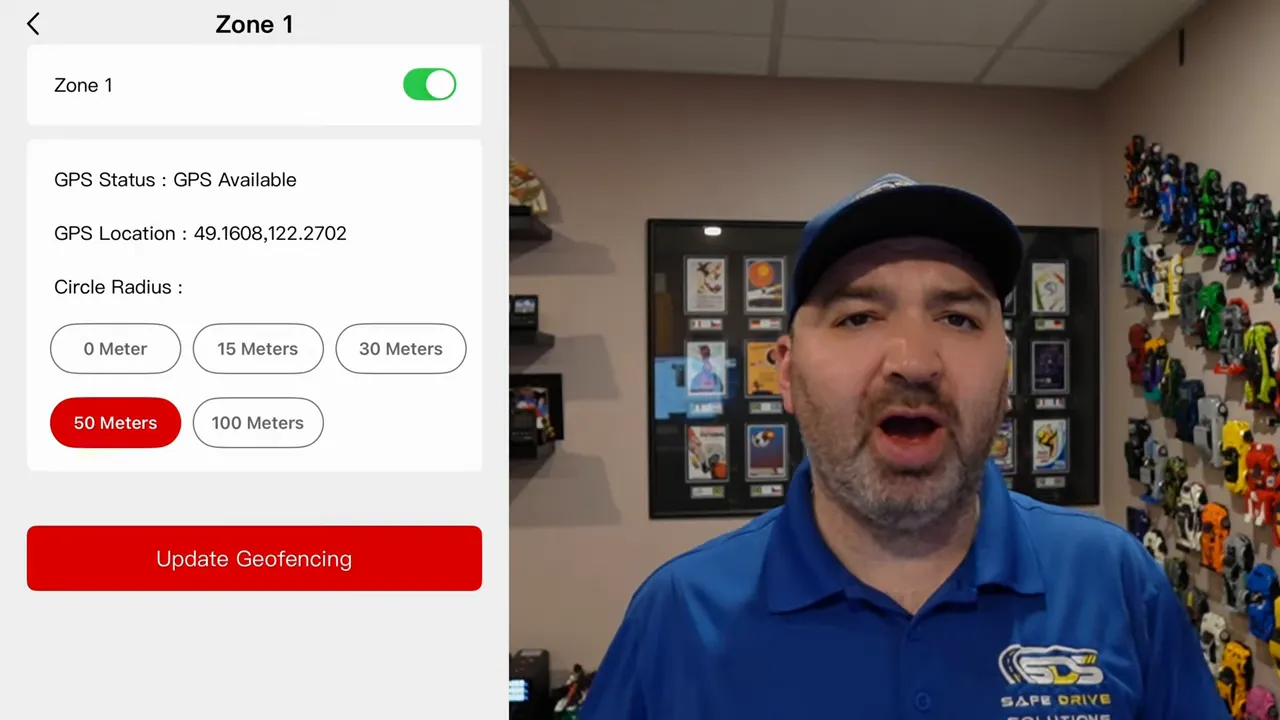
Open the latest version of the Viofo smartphone app and find the Parking Recording section. You’ll see options to create up to three zones.
- Register a zone by tapping your current location (or manually selecting a point on the map).
- Choose a radius: 0 m, 15 m, 30 m, 50 m, or 100 m depending on how tight or large the parking area is.
- Toggle each zone on or off with the slider. Use separate zones for home, work, or other regular parking spots.
Step 3 — Using the Vueroid Hub or device screen
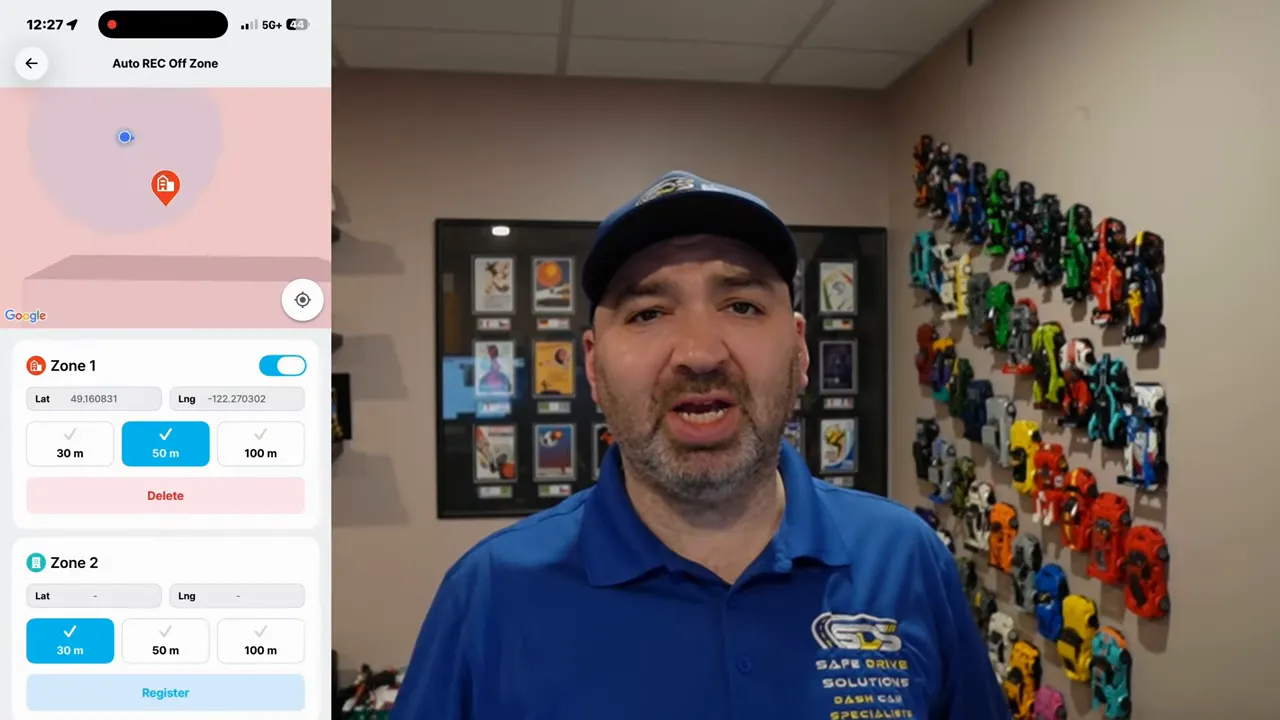
For Vueroid S1 4K and similar models, connect to the Void Hub app:
- Open the app and go to More > Settings.
- Scroll to Autorec Zone (or similar).
- Register the current location and choose a radius—commonly 30, 50, or 100 meters.
- Enable or disable zone 1, zone 2, zone 3 as needed.
Tips for choosing zone radius
- Use smaller radius (15–30 m) for tight parking lots or single-house garages to avoid accidental disablement when you stop briefly outside.
- Use larger radius (50–100 m) for workplace lots where you want the camera off anywhere within that area.
- Test each configured zone by parking at the edge to confirm expected behavior.
Real-world test: how it behaves
With a 50 m zone set around the house, drive outside the radius and let the car enter parking mode. You should hear the dashcam indicate it’s entering parking recording:
Starting parking. Parking recording.
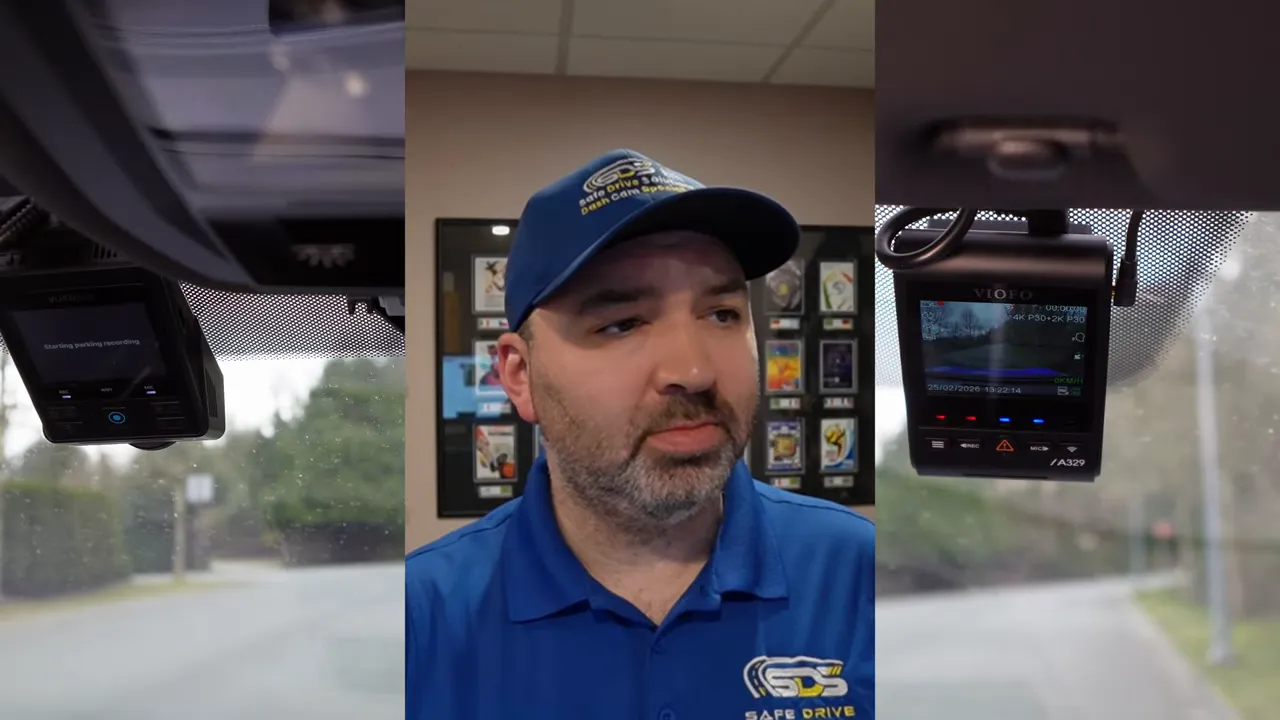
When you return and park inside your registered 50 m zone, the dashcam will skip parking recording and remain off—saving battery without any manual input.
Final checklist before relying on geofence
- Confirm your dashcam firmware and smartphone/hub app are up to date.
- Verify GPS lock is stable (solid GPS indicator).
- Register each zone while physically at the location for best accuracy.
- Test at the zone edge to ensure the selected radius works for your setup.
- Consider a dedicated dashcam battery pack if you still want uninterrupted parking monitoring without using the car battery.
Where to get help and installation
If you prefer professional setup or want a permanent hardwire for reliable parking mode, local installers can set up parking mode cables, hardwire kits, or battery packs and confirm geofence configuration. Professional installation also helps avoid wiring mistakes and ensures consistent GPS performance.
Geofencing gives you simple, effective control over when your dashcam records while parked. It reduces battery drain, eliminates manual toggles, and keeps your footage relevant—especially for places you trust like home and work.
Have a safe drive.