
Viofo, Thinkware & Vueroid Dash Cameras — Easy to Use and How to Get Your Footage

Comparing three popular 4K front / 2K rear dash cameras — the Viofo A329S, the Vueroid S1 (S14K), and the Thinkware U3000 Pro — this guide covers pairing, extracting footage, SD card choices, and real-world recording times on a 128 GB card. Practical, step-by-step directions are included so you can pair to your phone, copy clips, or pull the card and view files on a computer.
Which cameras are covered
- Viofo A329S — high bit rate 4K/2K, multiple download options
- Vueroid S1 (S14K) — 4K/2K, supports USB-C mass storage and app access
- Thinkware U3000 Pro — 4K/2K, app + microSD extraction
Pairing and downloading — quick walkthroughs
Vueroid S1 (S14K) — pairing and app download
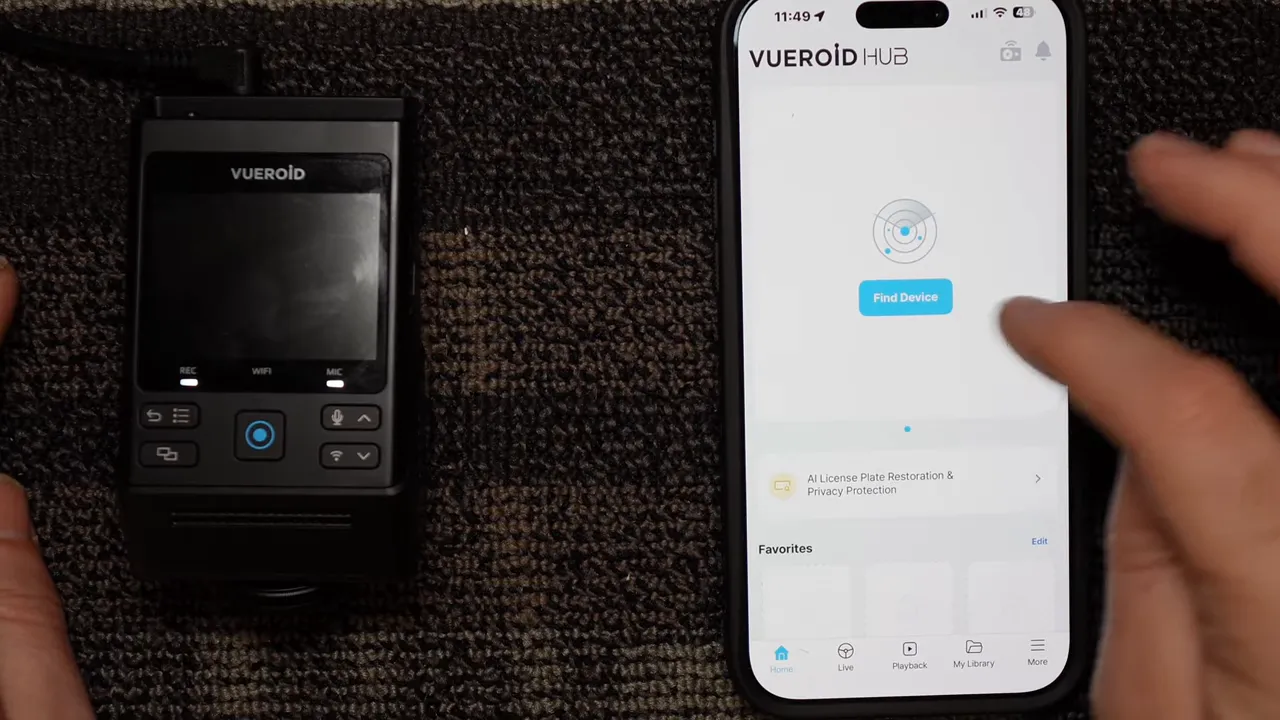
To pair the S1 using the Vueroid (Void Hub) app:
- Press the Wi‑Fi button on the camera to turn Wi‑Fi on.
- In the app select "Find device" and confirm the S1 when it appears on the list.
- Follow the prompts to join the dash cam network; accept the connection on the dash cam screen when asked.
- Use the app's Playback section to browse Drive Recording, Events, Parking recordings, and Manual recordings. Tap a clip to download directly to your phone.
Tip: Wireless Apple CarPlay or Android Auto can interfere with direct Wi‑Fi pairing on some newer vehicles. If pairing fails, try when the car is not using the wireless infotainment connection.
Thinkware U3000 Pro — Bluetooth + Wi‑Fi
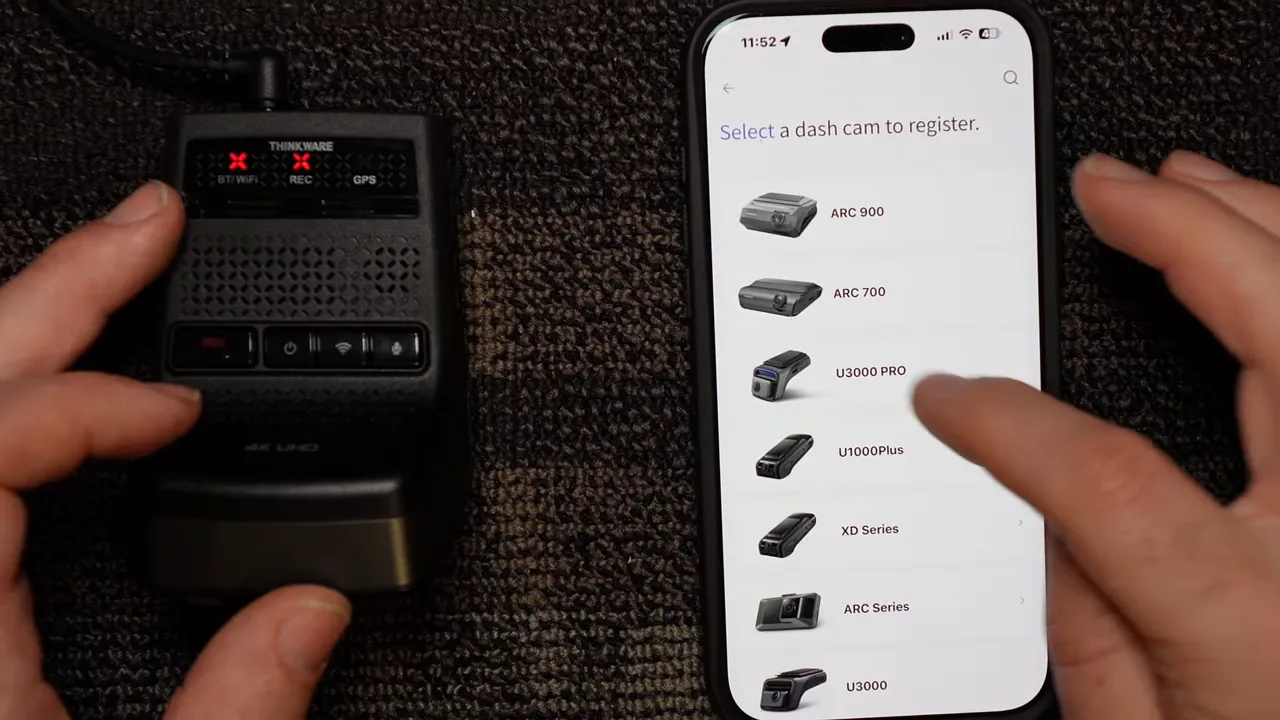
The Thinkware app uses Bluetooth for registration and Wi‑Fi for file transfers:
- Open Thinkware Dash Cam Link and start Dash Cam Registration. Select the U3000 Pro.
- Make sure Bluetooth is enabled on the phone and the dash cam is powered.
- Press and hold the Wi‑Fi button on the camera for three seconds until it beeps and the Wi‑Fi LED blinks blue.
- Connect via the app, then use the Videos area to filter front/rear, continuous, incident, parking, or manual clips. Preview and download files to internal memory from the app.
Note: Thinkware’s workflow is straightforward but limited to either the app or pulling the microSD card for desktop access.
Viofo A329S — app pairing and USB options
Viofo’s A329S supports a modern app and also USB‑C mass storage access:
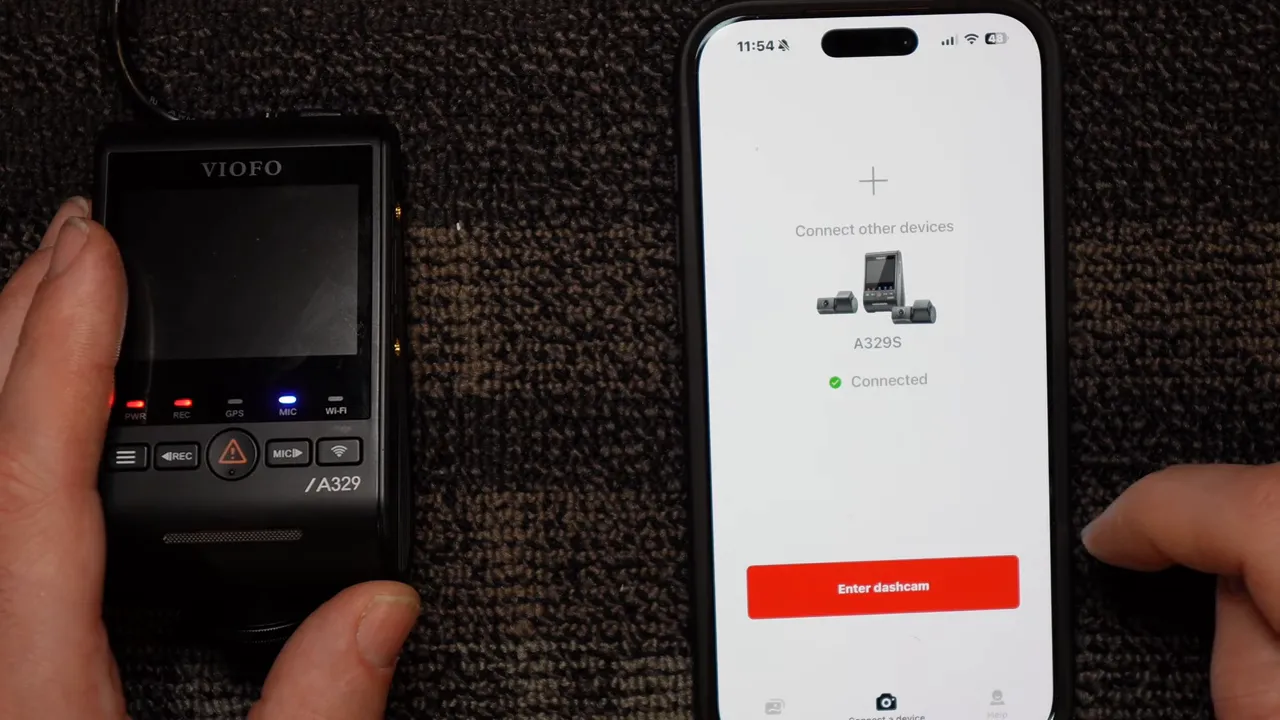
- Tap the Wi‑Fi button to wake the screen, then hold it for five seconds to enable Wi‑Fi.
- In the Viofo app select the A329S network and enter the default password (commonly 12345678) unless changed.
- Once connected you can browse All Videos, Locked Files, Parking Files, and Photos — tap a clip to download to your phone.
Tip: Viofo tends to use a higher bit rate than many competitors, so pairing speeds and card endurance are important considerations.
Four ways to get footage off the camera
Depending on the model you can use one or more of these methods:
- Smartphone app (Wi‑Fi): Browse and download clips via the manufacturer app (iOS/Android).
- Remove microSD card: Use the included full‑size SD adapter and a computer SD slot or a USB card reader.
- USB‑C to computer: Plug the camera directly into a PC/Mac and access mass storage if the model supports it (Viofo and Vueroid do).
- USB‑C to phone: Newer phones with USB‑C can connect directly and access the camera’s DCIM/movies folders in mass storage mode.
Thinkware: app and microSD only. Viofo A329S and Vueroid S1: app, microSD, USB‑C to computer, and USB‑C to phone.
USB‑C mass storage examples
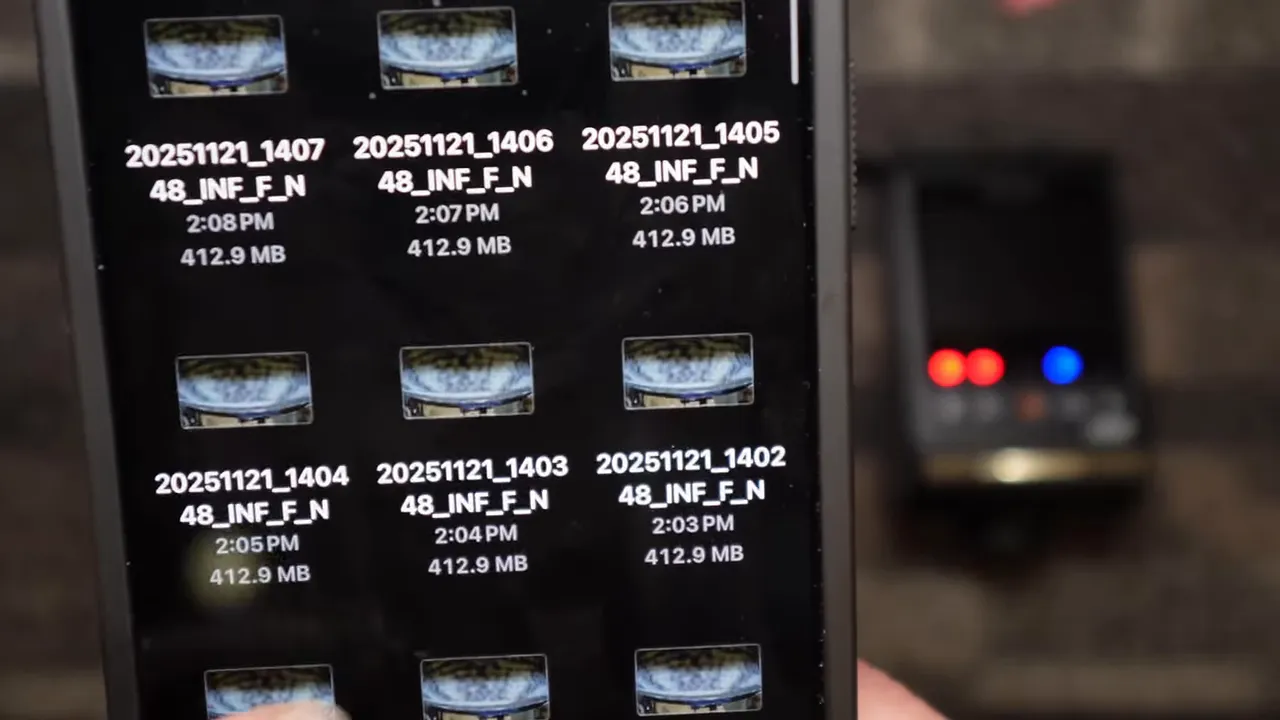
Testing showed both the Vueroid S1 and the Viofo A329S will enter mass storage mode when connected and operated per the instructions. This means quick access to DCIM/movie files on a phone or computer without removing the card.
SD card capacities and recommendations
All three cameras support up to 512 GB microSD. Practical options:
- Viofo High Endurance 512 GB — our top pick for high bit rate Viofo units due to proven endurance under heavy writes.
- Thinkware and Vueroid offer branded 512 GB cards if you prefer manufacturer kits.
- SanDisk Max Endurance is reliable but limited to 256 GB.
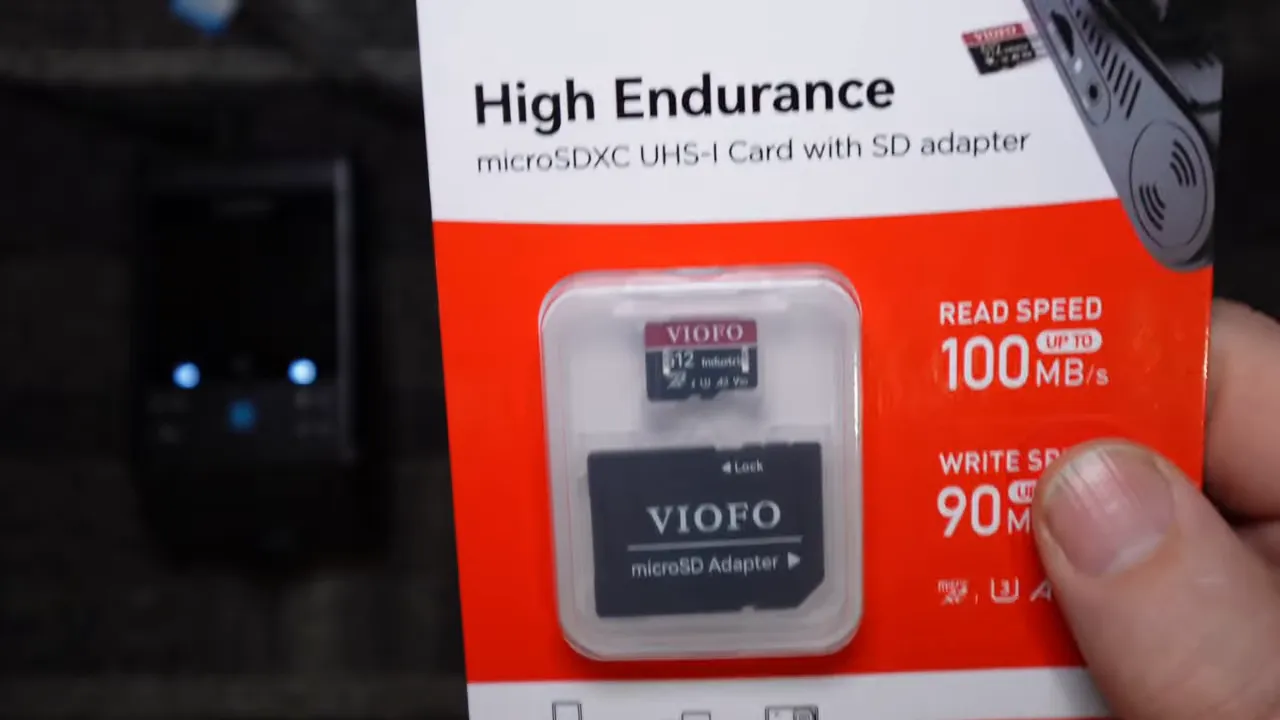
Tip: Higher bit rate cameras demand higher endurance cards. Using a high quality high endurance card reduces corruption and avoids premature failure.
Real test: How long does a 128 GB card record?
Test setup:
- All cameras set to two‑channel (front 4K / rear 2K).
- All use Sony Starvis 2 sensors.
- Same SanDisk Extreme Pro 128 GB card used for each test to standardize results.
- Recording set to maximum/high or normal bit rate, depending on the camera’s naming.
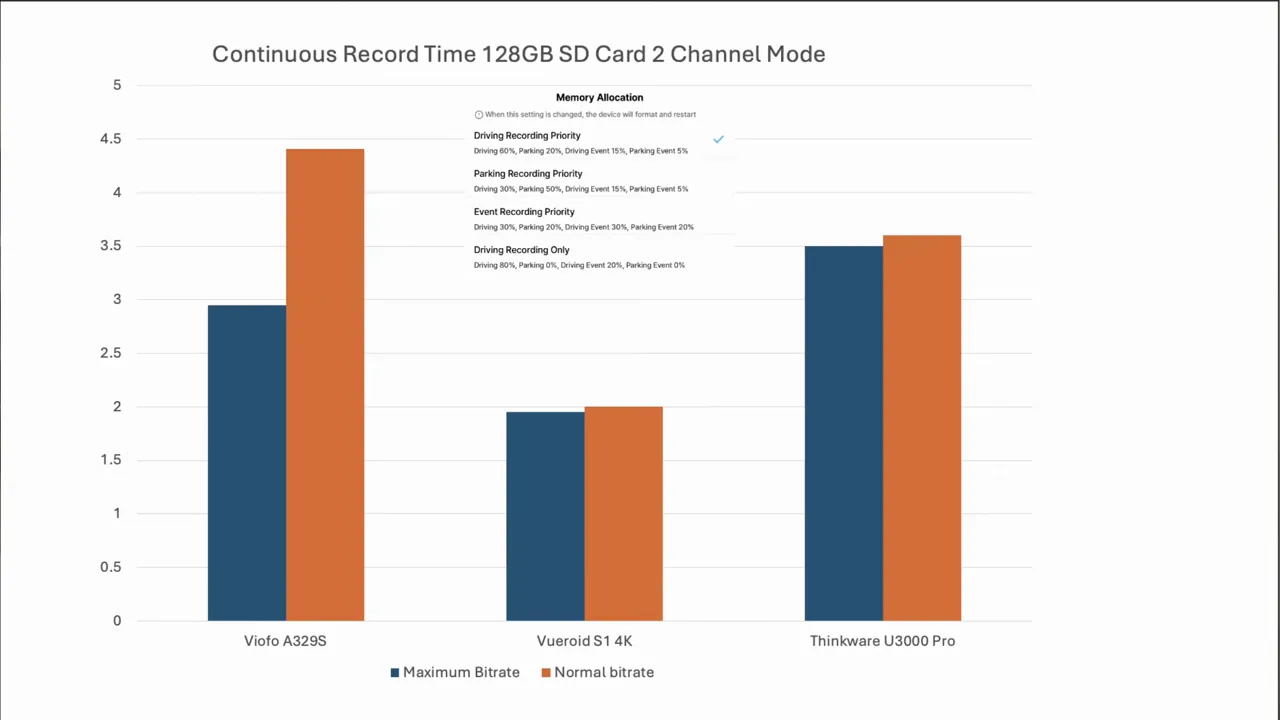
Results for continuous recording on a 128 GB card:
- Viofo A329S — Maximum bit rate: just under 3 hours. Normal bit rate: approximately 4.5 hours.
- Vueroid S1 — With the camera’s default memory allocation in place (reserving space for parking/event recordings): Maximum bit rate: about 1.9 hours; Normal bit rate: about 2 hours.
- Thinkware U3000 Pro — Maximum: about 3.5 hours; Normal: about 3.6 hours.
Important nuance for the Vueroid S1:
By default the S1 uses memory allocation to reserve portions of the card for parking and event recordings (for example 20% parking, 15% driving event, 5% parking incidents). With that allocation active only about 60% of the card is used for continuous drive recording. When memory allocation is disabled the S1’s continuous recording time increases to roughly 3.2 hours at maximum bit rate and 3.3 hours at normal bit rate.
Note: Two of the units (Vueroid and Viofo) initially showed incompatibility with the SanDisk Extreme Pro card in one run, so the test had to be repeated. This highlights how certain cards and cameras interact — always format the card in the camera and check manufacturer compatibility lists.
Practical recommendations
- If you want longer continuous recording: Use normal bit rate or larger capacity cards (512 GB) and consider disabling aggressive memory allocation if you do not need reserved parking/event space.
- For event retention: Memory allocation can preserve event clips longer, which is useful if you want to keep incidents available for days or weeks without being overwritten by routine driving footage.
- For fast extraction: Use USB‑C mass storage on Viofo or Vueroid to copy files quickly to a phone or computer without pulling the card.
- Card choice matters: Match a high endurance card to cameras with high bit rates to prevent corruption and maximize lifespan.
Summary
Each camera has strengths. The Viofo A329S pushes higher bit rates and offers multiple download methods, making it flexible but demanding on storage. The Vueroid S1 provides useful memory allocation to protect event clips but that reduces continuous recording unless you change the allocation. The Thinkware U3000 Pro is reliable with a clean app flow but limited to app downloads and card pulls for extraction.
Choose based on your priorities: maximum image quality and flexibility (Viofo), event retention and allocation (Vueroid), or a straightforward app experience (Thinkware). Pair carefully, format cards in camera, and use USB‑C mass storage when you need quick access to footage.